Playing PUBG Mobile on a low-end device often means dealing with lag, frame drops, overheating, and stuttering. The good news? You can still achieve smooth, playable gameplay (stable 40–60 FPS) by optimizing graphics settings properly.
In 2026, the latest PUBG Mobile updates (version 4.x series) emphasize performance modes. Prioritizing stability over visuals is key for low-end phones. Lower settings reduce GPU/CPU load, minimize heat, and improve enemy visibility — giving you a competitive edge in close fights.
Here’s the best FPS settings for low-end devices that deliver maximum smoothness without crashes.
Recommended Graphics Settings for Low-End Devices
Go to Settings → Graphics & Audio and apply these:
- Graphics Quality: Smooth (or Super Smooth / So Smooth if available) This is the most important change. It lowers textures, polygons, and effects, boosting FPS by 15–30+ on budget phones.
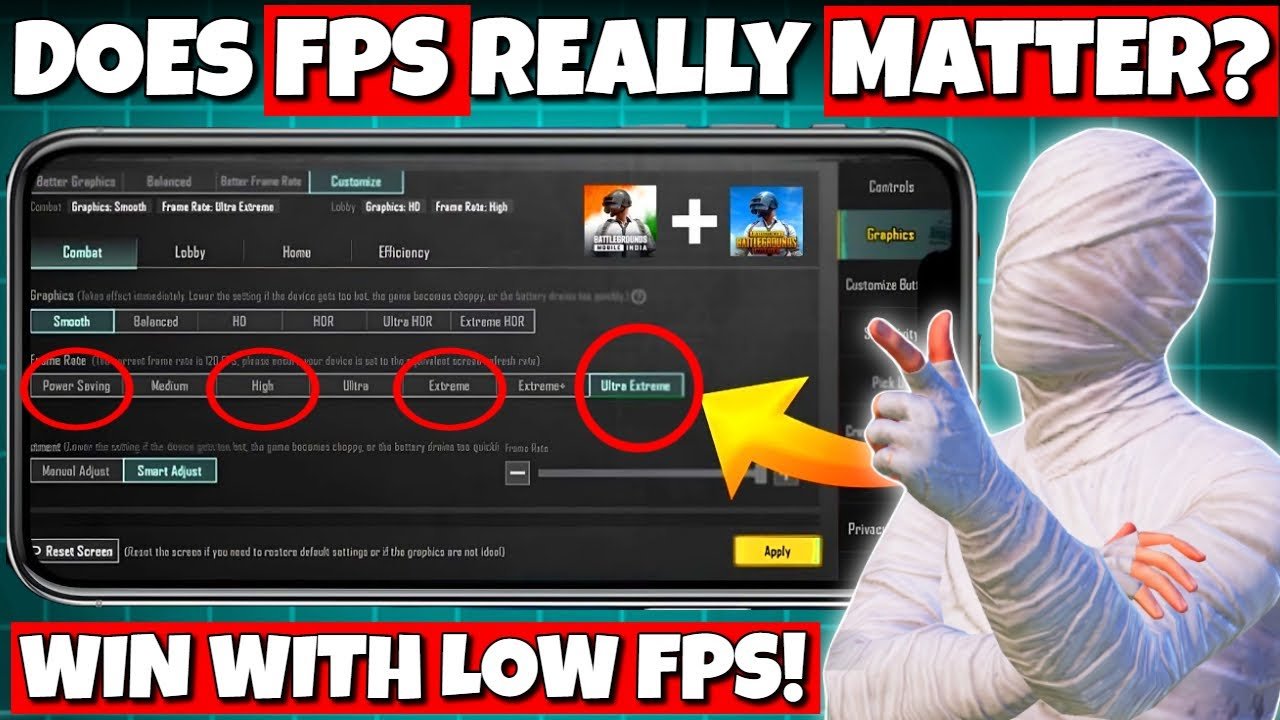
- Frame Rate: Extreme (60 FPS) if your device can hold it stably If you notice drops or heating, drop to High (40–50 FPS) or Ultra for better consistency. Never force higher than what your phone can sustain.
- Style: Classic or Colorful Classic improves contrast and makes enemies pop. Colorful offers better visibility in bright areas.
- Anti-Aliasing: Off Saves a lot of performance with minimal visual loss.
- Shadows: Off Shadows are a major FPS killer and can hide enemies in bushes. Turning them off gives a tactical advantage.
- Auto-Adjust Graphics: Off Let the game automatically lower settings during fights — this can cause sudden stutters.
- Resolution: Lowest available (Balanced or Smooth)
- Brightness: 110–150% (helps spot enemies in dark areas without affecting performance much).
Additional Graphics & Audio Tweaks:
- SFX Quality: Low
- Post-Processing: Off or Low
- Effects: Low
- Enable GPU Optimization (if available)
- Graphics API: Try Vulkan (better on newer low-end chips) or OpenGL if Vulkan causes issues.
These settings typically deliver stable 45–60 FPS on devices like Redmi 9/Note series, Realme C-series, Samsung A-series (older models), or phones with Snapdragon 600/700 series and 3–4GB RAM.
Device Optimization Tips (Outside the Game)
To get even better FPS and reduce lag:
- Close Background Apps — Use Game Booster or phone’s built-in game mode (e.g., Game Space on Xiaomi, Game Launcher on Samsung).
- Enable Performance Mode — In your phone’s settings, switch to High Performance or Game mode.
- Free Up Storage — Keep at least 10–15 GB free. Clear cache regularly.
- Update PUBG Mobile — New updates often include low-end optimizations.
- Lower Screen Refresh Rate — Set your phone to 60Hz if it supports 90/120Hz (sometimes helps stability on weak hardware).
- Cool Down Your Phone — Play in a cool environment or use a phone cooler/fan. Overheating causes thermal throttling and FPS drops.
- Consider PUBG Mobile Lite — For very low-end devices (2GB RAM or less), the Lite version offers better optimization and stable 60 FPS with fewer players.
Quick Settings Comparison Table (Low-End Focus)
| Setting | Low-End Recommendation | Reason | Expected FPS Gain |
|---|---|---|---|
| Graphics Quality | Smooth / Super Smooth | Reduces load dramatically | +15–30 FPS |
| Frame Rate | Extreme (60) or High | Smoother aiming & movement | Stability first |
| Anti-Aliasing | Off | Heavy on GPU | +5–10 FPS |
| Shadows | Off | Big performance + visibility boost | +8–15 FPS |
| Style | Classic / Colorful | Better enemy spotting | No FPS impact |
| Auto-Adjust Graphics | Off | Prevents sudden drops | More consistent |
| Brightness | 120–150% | Improves visibility | No FPS impact |
Bonus Tips for Competitive Play on Low-End Devices
- Sensitivity Adjustments: On low and unstable FPS, lower your sensitivity slightly (especially camera and ADS) to avoid shaky aim. Stable 50–60 FPS feels much better than fluctuating 40–70 FPS.
- Control Layout: Use 3-finger or 4-finger claw if possible — it helps with quick reactions even on lower FPS.
- Monitor FPS: Use in-game FPS counter (enable in settings) or third-party apps to check stability.
- Test in Training Ground: Spend 5–10 minutes tweaking and testing before ranked matches.
- Avoid Crowded Areas Early: Drop in less populated zones initially to let the game stabilize.
Final Thoughts
With Smooth + Extreme (60 FPS), disabled shadows and anti-aliasing, and basic device optimizations, most low-end devices can run PUBG Mobile smoothly in 2026. The goal isn’t pretty graphics — it’s consistent frames and clear visibility so you can focus on winning fights.
Start with the recommended settings above, play a few classic or TDM matches, and adjust the Frame Rate down if you experience heating or drops. Over time, these tweaks can turn your “potato” phone into a reliable battleground machine.
If you still face heavy lag, share your exact phone model and RAM in the comments for more specific advice.