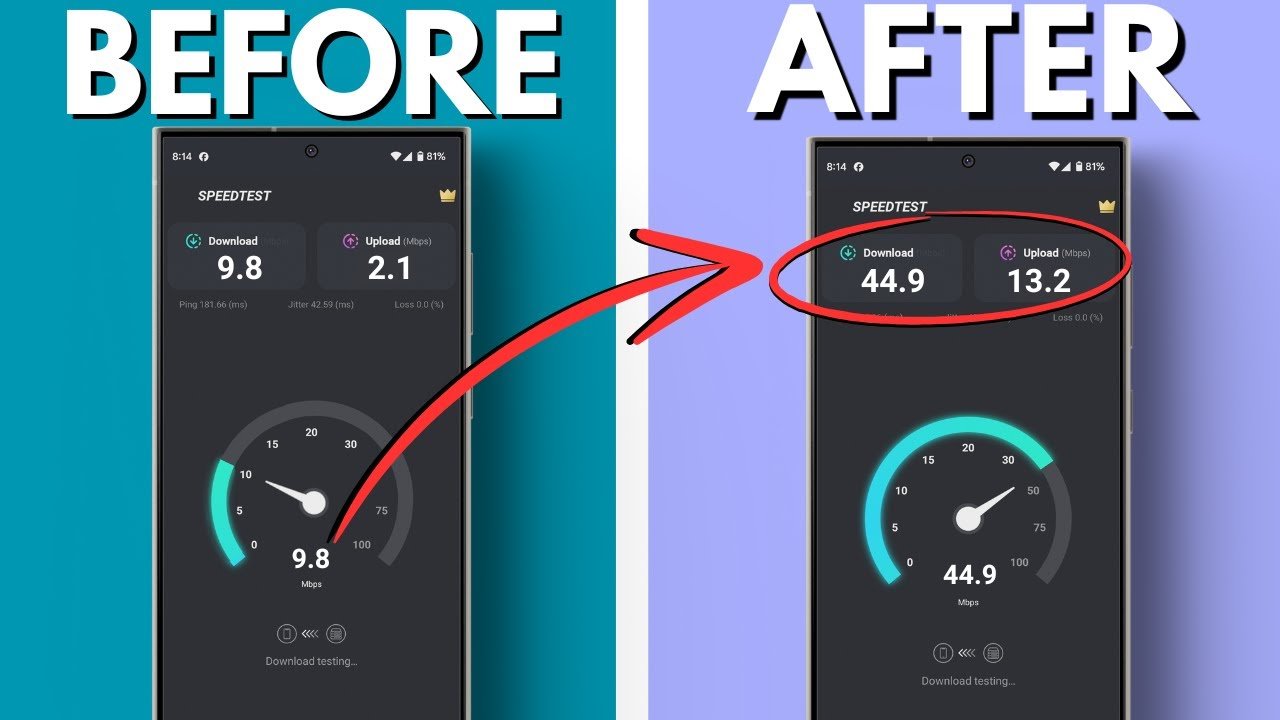
A slow internet connection can be frustrating, especially when streaming videos, using social media, or attending online meetings. Whether you use an Android phone or an iPhone, there are several effective ways to boost your internet speed and improve overall performance. This article explains simple and practical methods to increase internet speed on both devices
Restart Your Phone
One of the easiest ways to fix slow internet is by restarting your smartphone. Restarting clears temporary system glitches and refreshes the network connection.
How it helps:
- Clears background processes
- Resets Wi-Fi and mobile network signals
- Improves overall performance
Turn Airplane Mode On and Off
Switching airplane mode on for a few seconds and turning it back off forces your phone to reconnect to the nearest network tower or Wi-Fi.
Steps:
- Open Settings or quick menu
- Enable Airplane Mode for 10–15 seconds
- Turn it off and reconnect
This method works well when mobile data is unstable
Switch Between Wi-Fi and Mobile Data
Sometimes your Wi-Fi connection may be weak, or your mobile network may be overloaded. Switching between the two can improve speed instantly.
Tip:
- If Wi-Fi is slow, try mobile data
- If mobile data is weak, connect to a stronger Wi-Fi network
Move Closer to the Wi-Fi Router
Wi-Fi signals become weaker with distance and obstacles like walls or furniture. If you are far from the router, your speed will drop.
Best practices:
- Stay within a close range of the router
- Avoid thick walls between you and the router
- Place the router in a central open area
Clear Browser Cache and App Data
Browsers and apps store cache files to load content faster, but over time these files can slow down performance.
On Android:
- Go to Settings → Apps → Browser/App → Storage
- Tap Clear Cache
On iPhone:
- Go to Settings → Safari
- Tap Clear History and Website Data
Clearing the cache can speed up browsing and improve app loading times.
Disable Background Apps and Downloads
Many apps continue using the internet in the background, which reduces available bandwidth.
What to do:
- Close unused apps
- Pause app updates and downloads
- Disable auto-sync if not needed
On Android:
- Settings → Network & Internet → Data Saver
On iPhone:
- Settings → General → Background App Refresh → Off
Update Your Phone and Apps
Old system software or outdated apps may cause slower internet performance due to bugs or compatibility issues.
Update regularly:
- Android: Settings → System → Software Update
- iPhone: Settings → General → Software Update
Also, update apps through the Play Store or App Store.
Use a Faster DNS Server
DNS servers help your phone load websites faster. Switching to a faster DNS like Google DNS or Cloudflare DNS can improve browsing speed.
Recommended DNS:
- Google DNS: 8.8.8.8 / 8.8.4.4
- Cloudflare DNS: 1.1.1.1 / 1.0.0.1
On Android:
- Settings → Network & Internet → Private DNS
- Select “Private DNS provider hostname”
- Enter:
dns.googleor1dot1dot1dot1.cloudflare-dns.com
On iPhone:
Reset Network Settings
If your internet is slow due to incorrect settings, resetting the network can help.
On Android:
- Settings → System → Reset Options → Reset Wi-Fi, Mobile & Bluetooth
On iPhone:
- Settings → General → Transfer or Reset iPhone → Reset → Reset Network Settings
This removes saved Wi-Fi passwords, so reconnect afterward
Disable VPN or Proxy Services
VPNs and proxies can slow down internet speed because they route your data through different servers.
Try this:
Check Data Limits and Network Coverage
Slow internet can happen when your mobile data plan is nearly finished or when network coverage is weak.
Solutions:
Remove Unwanted Apps and Malware (Android)
Some apps may consume internet data secretly or slow down your phone.
On Android:
- Install a trusted antivirus app
- Remove suspicious or unused apps
iPhones are generally safer, but deleting unused apps still helps improve performance.
Use a Lightweight Browser
Heavy browsers may use more resources and load slower. Using a faster or lightweight browser can improve browsing speed.
Recommended browsers:
- Google Chrome
- Safari (for iPhone)
- Opera Mini
- Brave Browser
Conclusion
Increasing internet speed on Android and iPhone is often easy if you apply the right settings and maintenance tips. Simple actions like restarting your phone, clearing cache, disabling background apps, and using faster DNS servers can significantly improve browsing and download speed. If your connection is still slow after trying these steps, the issue may be with your network provider, router, or coverage area.