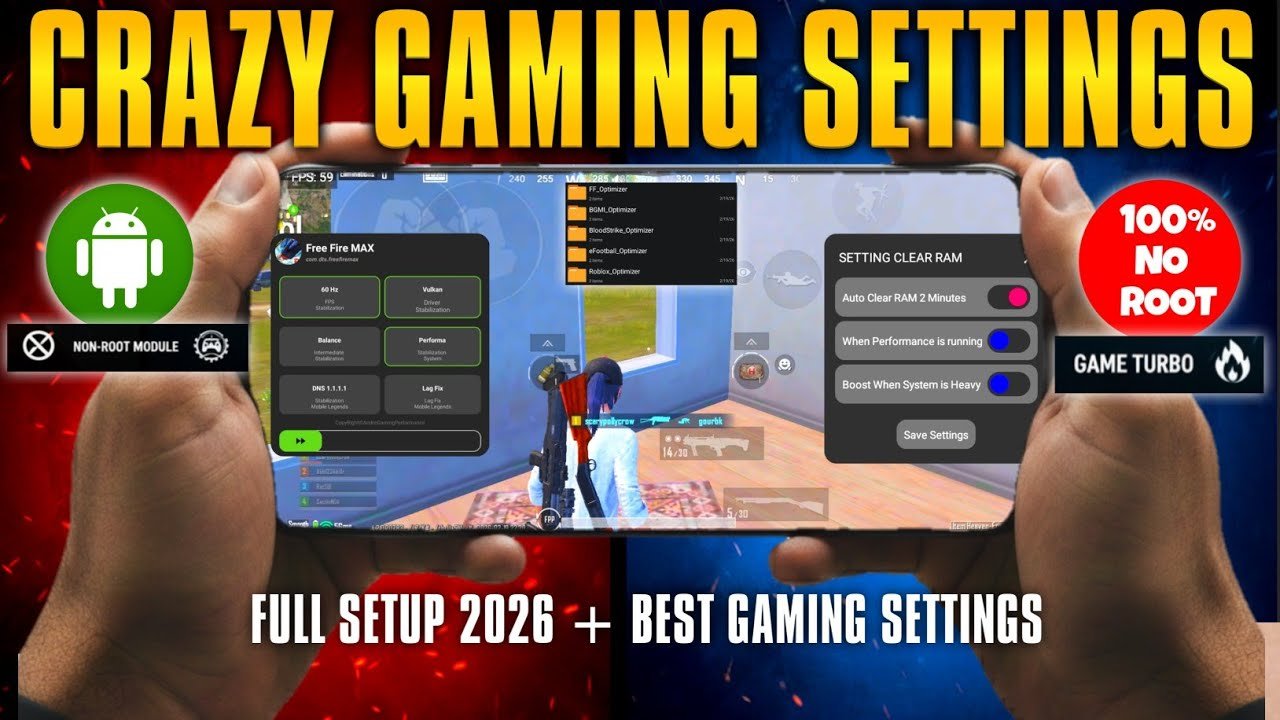
Lag, frame drops, overheating, and stuttering ruin the gaming experience — whether you’re playing PUBG Mobile, COD Mobile, Genshin Impact, or Fortnite. In 2026, even mid-range phones can deliver smooth, high-FPS gameplay with the right system tweaks.
These proven settings optimize CPU/GPU usage, reduce background interference, improve touch response, and maintain stable frame rates. Follow this guide for lag-free gaming on Android and iPhone.
1. Universal Pre-Gaming Preparations (Works on All Phones)
- Update Everything: Keep your OS, game apps, and drivers updated. New updates often include performance fixes and better optimization.
- Close Background Apps: Manually swipe away unnecessary apps or use built-in cleaners before launching a game.
- Cool Down Your Phone: Play in a cool environment or use a phone cooler/fan. Heat causes thermal throttling, which drops FPS dramatically.
- Use Stable Wi-Fi or 5G: Switch to the fastest network. Disable mobile data if using Wi-Fi to avoid conflicts.
- Disable Battery Saver / Low Power Mode: These throttle performance. Turn them off during gaming sessions.
2. Best Settings for Android Phones (Most Effective Tweaks)
Android offers more customization. High-refresh-rate phones (90Hz/120Hz+) benefit the most.
Enable Developer Options (Essential First Step)
- Go to Settings → About Phone.
- Tap Build Number 7 times until it says “You are now a developer.”
- Go back to Settings and search for Developer Options.
Key Developer Options for Lag-Free Gaming:
- Window Animation Scale → Set to 0.5x (or Off)
- Transition Animation Scale → 0.5x (or Off)
- Animator Duration Scale → 0.5x (or Off) Result: Faster UI response and smoother overall feel.
- Force Peak Refresh Rate → Enable (locks highest refresh rate for gaming).
- Background Process Limit → Set to No background processes or At most 2 processes (frees RAM).
- Force 4x MSAA → Enable (improves graphics smoothness in supported games; optional if you notice battery drain).
- Force GPU Rendering → Enable for better graphics performance.
Enable Built-in Game Mode / Game Turbo
Most brands have this feature:
- Samsung: Settings → Advanced Features → Game Launcher / Game Booster
- Xiaomi/Redmi/Poco: Security App → Game Turbo
- OnePlus/Realme/Oppo: Settings → Utilities / Special Features → Gaming Mode
- Others: Search for “Game Mode”, “Game Space”, or “Gaming Hub”
What to Enable in Game Mode:
- Performance Mode (or Extreme/High Performance)
- Block notifications and calls
- Boost CPU/GPU priority
- Improve touch sampling rate
- Auto-close background apps
Additional Android Optimizations
- Display Settings: Set Refresh Rate to Highest (90Hz/120Hz) and enable Smooth Display / Motion Smoothness.
- Battery Settings: Switch to Performance mode (instead of Balanced).
- Graphics Driver Preferences (Android 14+): Settings → Developer Options → Search “Graphics” → Set your games to System graphics driver for better optimization.
- Do Not Disturb: Turn on during gaming (or schedule Game mode to activate it automatically).
For PUBG Mobile / COD Mobile Specifically:
- In-game: Graphics → Smooth or HD + Extreme/Ultra Extreme FPS (90/120 if supported).
- Prioritize FPS over visual quality to stay lag-free.
3. Best Settings for iPhone (iOS 18/19/26 in 2026)
iPhones are more locked down but still benefit from targeted tweaks.
- Enable Game Mode (iOS 18+): Automatically activates when you launch supported games. It reduces background activity and prioritizes performance.
- Turn Off Low Power Mode: Settings → Battery → Low Power Mode → Off.
- Background App Refresh: Settings → General → Background App Refresh → Set to Wi-Fi or Off.
- Reduce Motion & Transparency (for smoother feel):
- Settings → Accessibility → Motion → Reduce Motion → On
- Settings → Accessibility → Display & Text Size → Reduce Transparency → On
- Focus Mode: Create a custom “Gaming” Focus that silences notifications.
- Display Settings: Enable ProMotion (120Hz on Pro models) and keep Auto-Brightness on for adaptive performance.
- Keep iOS Updated: New versions often fix gaming-related lag and improve thermal management.
Pro Tip for iPhone: Avoid playing while charging if your phone gets very hot — it can trigger performance limits.
Quick Comparison: Android vs iPhone Gaming Optimizations
| Setting / Feature | Android Benefit | iPhone Benefit | Impact on Lag |
|---|---|---|---|
| Animation Scales (0.5x) | Huge UI speedup | Not available (use Reduce Motion) | High |
| Game Mode / Game Turbo | Deep CPU/GPU boost + notification block | Automatic background reduction | Very High |
| High Refresh Rate Lock | Force Peak Refresh Rate | ProMotion enabled | High |
| Background Processes | Limit to 0–2 | Background App Refresh Off | High |
| Thermal/Performance Mode | Performance Mode | Game Mode + Avoid Low Power | Medium-High |
Extra Tips for Sustained Lag-Free Performance in 2026
- Monitor Temperature & FPS: Use built-in tools (Game Turbo dashboard) or apps like CPU-Z / DevCheck to watch temps and frame rates.
- Clear Cache Regularly: For heavy games, clear game cache every few days.
- Avoid Over-Optimization: Too many tweaks (like forcing 4x MSAA on low-end phones) can cause instability — test one change at a time.
- Use a Gaming Phone if Possible: Devices with advanced cooling (vapor chamber) and dedicated gaming chips maintain high FPS longer.
- Restart Phone Weekly: Clears memory leaks that build up over time.
Final Thoughts
The biggest gains come from three simple actions:
- Reduce or disable system animations (Android).
- Enable Game Mode / Game Turbo and Performance mode.
- Prioritize Smooth graphics + Maximum FPS in-game instead of high visuals.
Apply these settings before your next session and you’ll notice smoother aiming, fewer stutters, and more consistent frame rates — even during intense battles.
Start with Developer Options + Game Mode on Android or Game Mode + Background restrictions on iPhone. Tweak based on your specific device and game. Consistent performance beats occasional high graphics every time.
Enjoy lag-free gaming and climb those ranks!