A fast internet connection depends not only on your internet package but also on how well your network is configured. With the right settings, you can improve browsing speed, increase download performance, and reduce lag or buffering. Below are the best network settings you can apply to get a smoother and faster internet experience.
Use a Faster DNS Server
DNS servers help your device find websites quickly. A slow DNS can make browsing feel delayed even if your internet speed is good. Switching to a faster public DNS can improve website loading time and responsiveness. Popular options include Google DNS and Cloudflare DNS, which are widely known for speed and reliability.
Enable QoS for Better Speed Management
Quality of Service (QoS) is a router feature that helps manage internet traffic. It allows your router to prioritize important activities like browsing, downloading, gaming, or video calls. When QoS is enabled, heavy usage from one device is less likely to slow down the whole network.
Choose the Right Wi-Fi Band
Most modern routers provide two Wi-Fi frequency bands: 2.4 GHz and 5 GHz. The 5 GHz band is usually faster and provides better performance for browsing and downloading, especially when you are close to the router. The 2.4 GHz band offers wider coverage but can be slower due to interference from other networks and devices.
Select the Best Wi-Fi Channel
Wi-Fi signals often overlap with nearby networks, causing interference and reduced speed. Setting your router to a less crowded Wi-Fi channel can improve connection stability and speed. Many routers allow you to manually choose a channel, which can help reduce congestion and improve performance.
Use Modern Wi-Fi Standards
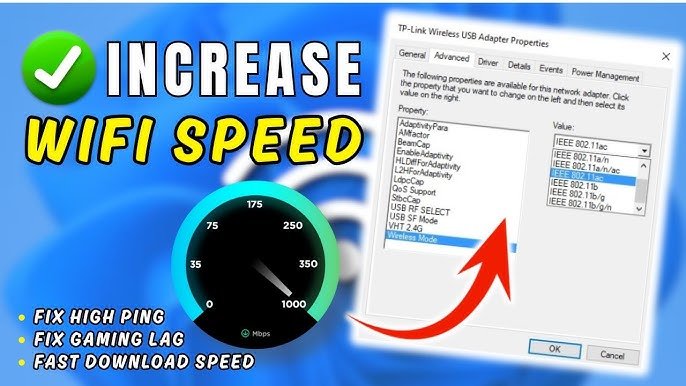
For the best speed, your router should be set to use modern wireless modes such as Wi-Fi 5 or Wi-Fi 6. Older modes can reduce network performance and limit maximum speed. If your router supports newer standards, enabling them can improve both speed and reliability.
Use Ethernet for Maximum Performance
A wired Ethernet connection is still the best choice for fast and stable internet. It provides consistent speed and avoids wireless interference. If possible, connect devices like computers, gaming consoles, or smart TVs directly to the router for faster downloading and smoother browsing.
Keep Router Firmware Updated
Router firmware updates often include performance improvements, security patches, and bug fixes. Using outdated firmware can lead to slow speed, disconnections, or unstable performance. Checking for updates regularly ensures your router works at its best.
Optimize MTU Settings
MTU (Maximum Transmission Unit) controls how data packets are sent over the network. If MTU is not properly set, it may cause slow downloads or unstable browsing. Most users can keep the default setting, but in some cases adjusting MTU can improve performance, especially for specific internet connections.
Reduce Background Bandwidth Usage
Many devices run background applications that consume bandwidth without you noticing. Automatic updates, cloud backups, and streaming apps can reduce your available internet speed. Disabling unnecessary background activity helps free bandwidth for faster browsing and downloading.
Enable Hardware Acceleration in Router Settings
Some routers include features like NAT acceleration or hardware acceleration. These options improve router performance by reducing processing load and increasing data handling speed. When enabled, they can improve internet throughput and support faster downloads.
Secure Your Wi-Fi Network
Unauthorized users connected to your Wi-Fi can slow down your internet speed. Using strong Wi-Fi security settings like WPA3 or WPA2-AES helps protect your network. A strong password also prevents unwanted access and ensures full bandwidth is available for your own devices.
Restart the Router Occasionally
Routers can slow down over time due to memory buildup and continuous running. Restarting the router clears temporary issues and refreshes the connection. Doing this occasionally can improve speed and reduce connection problems.
Use Download Tools for Large Files
For large downloads, using a download manager can improve speed by allowing multiple connections to the server. This can be useful when downloading files from sources that support multi-thread downloading.
Conclusion
Faster browsing and downloading is possible with the right network settings. By using a better DNS server, optimizing Wi-Fi settings, enabling QoS, updating router firmware, and reducing background bandwidth usage, you can significantly improve internet performance. These simple adjustments can make your connection smoother, faster, and more reliable without upgrading your internet plan.