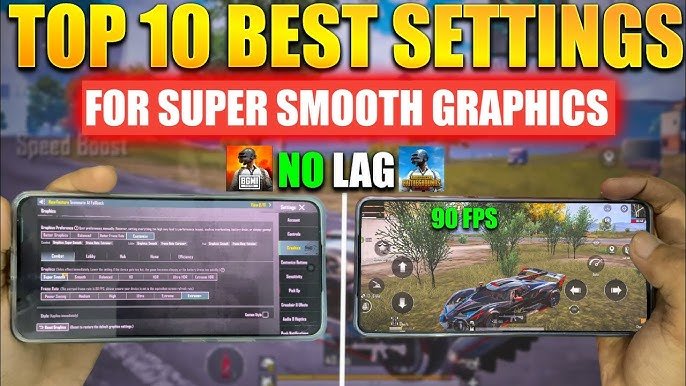
PUBG Mobile remains one of the most demanding battle royale games on mobile. In 2026, with frequent updates (including version 4.x series), achieving smooth gameplay with high and stable FPS is key to better reaction time, spotting enemies, and winning fights. High graphics look pretty but often cause lag, frame drops, and overheating — especially on mid-range or low-end devices.
The golden rule in 2026: Prioritize performance over visuals. Most pro players and competitive streamers use Smooth or Super Smooth graphics with maximum frame rate for the best responsiveness and visibility.
Here’s the ultimate guide to the best graphics settings for smooth PUBG Mobile gameplay.
Why Graphics Settings Matter for Smoothness
- Lower graphics reduce GPU/CPU load → higher and more stable FPS.
- Disabling heavy effects (shadows, anti-aliasing) improves enemy visibility — bushes and grass don’t hide players as much.
- Higher frame rates (60/90/120 FPS) make aiming, movement, and recoil control feel buttery smooth.
- Stable FPS prevents stuttering during intense fights or late-game circles.
Recommended Graphics Settings for Smooth Gameplay (2026)
Go to Settings → Graphics in PUBG Mobile and apply these:
1. Graphics Quality
- Smooth (or Super Smooth if available in your version) — Best choice for almost everyone.
- Avoid: Balanced, HD, HDR, Ultra HD (these look better but tank FPS and cause heating/lag).
Why? Smooth reduces polygon count, texture quality, and post-processing while keeping the game playable and competitive.
2. Frame Rate
- Set to the highest available:
- Extreme (60 FPS) — Most stable on mid-range devices.
- Ultra Extreme or 120 FPS — If your device supports it (flagship phones with 120Hz+ displays).
- High (if Extreme causes drops).
Tip: Enable 90/120 FPS only if your phone has a high-refresh-rate screen and good cooling. Otherwise, stick to Extreme for consistency.
3. Style
- Colorful or Classic — Both excellent for visibility.
- Colorful makes enemies pop more against the environment.
- Avoid Realistic (it adds unnecessary effects that hurt performance).
4. Auto-Adjust Graphics
- Turn OFF — Never let the game decide. It often lowers quality too aggressively or causes inconsistency.
5. Advanced / Individual Settings (Customize)
- Shadows: Off (huge FPS boost + better visibility — shadows no longer hide players).
- Anti-Aliasing: Off (reduces jagged edges but costs performance; off is better for competitive play).
- Brightness: 110–140% (helps spot enemies in dark areas; most pros use 120–130%).
- Resolution: HD or lower (if available) for extra smoothness.
- Effects / Post-Processing: Low or Off.
- SFX Quality: Low (if the option exists).
Color Blind Mode (optional): Many players enable Deuteranopia or Protanopia for better contrast and enemy highlighting.
Device-Specific Recommendations (2026)
| Device Type | Graphics Quality | Frame Rate | Shadows | Anti-Aliasing | Style | Expected FPS |
|---|---|---|---|---|---|---|
| Flagship (e.g., Snapdragon 8 Gen 3/4, Dimensity 9400) | Smooth / Super Smooth | Ultra Extreme (120 FPS) | Off | Off | Colorful | 90–120+ stable |
| Mid-Range (Snapdragon 7 series, Dimensity 7200+) | Smooth | Extreme (60 FPS) | Off | Off | Colorful | 55–60 stable |
| Low-End / Budget (4GB RAM or less) | Smooth | High / Extreme | Off | Off | Classic | 40–55 stable |
Extra Tips for Maximum Smoothness & Lag Fix
- Enable Game Mode / Performance Mode on your phone (in developer options or game launcher).
- Close all background apps and clear cache regularly.
- Use a good cooling case or play in a cool environment — overheating causes thermal throttling and FPS drops.
- Update PUBG Mobile to the latest version for better optimization.
- Enable Vulkan graphics API (if available in settings) for better performance on Android.
- Turn on Battery Saver? No — disable it. Use High Performance mode instead.
- For iOS users: Enable Low Power Mode only when not playing; keep it off during matches.
- Wi-Fi over mobile data for lower ping and fewer packet losses.
Bonus: Quick Visibility Tweaks
- Increase Brightness slightly.
- Use Colorful style.
- Disable unnecessary cosmetics and vehicle skins (they add visual clutter).
- Pair these graphics with good sensitivity settings and gyroscope for the full competitive edge.
Final Thoughts
For smooth PUBG Mobile gameplay in 2026, Smooth graphics + highest possible Frame Rate + Shadows Off is the meta. These settings give you stable high FPS, less lag, better battery life, and clearer enemy spotting — all crucial for chicken dinners.
Test these settings in the training ground first. If you still experience drops, lower the frame rate one step or free up more storage/RAM.
What device are you playing on? Drop your phone model in the comments, and I can suggest more tailored tweaks.
Start applying these changes today — your gameplay will feel noticeably smoother and more responsive.